How to Use VST Plugins in Amped Studio

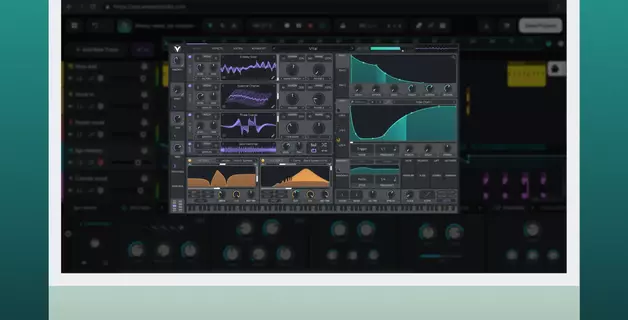
Amped Studio runs your installed VST and VST3 plugins inside the browser. Most online DAWs limit you to their own built-in instruments and effects, so the synths and processors you already rely on stay locked out. A small bridge app called VST Remote removes that limit: it connects the plugins on your computer to Amped Studio, and they run in browser just as they would in any desktop DAW.
This guide covers the full setup and how to get the most out of your plugins once they're connected.
What You Need Before Starting
- A computer running Windows or Mac
- VST or VST3 plugins already installed on that computer
- An Amped Studio Premium account (VST plugin support is a paid feature, available on a 7-day free trial). Full pricing and feature comparison
First-Time Setup: Connecting Your VST Plugins
Amped Studio gives you the ability to use VST plugins already installed on your computer in a browser session. Setup takes a few minutes the first time, VST remote bridge app runs in the background every time you load up Amped Studio.
The connection runs through a small bridge app called VST Remote. Your plugins stay on your machine and run locally; Amped Studio handles the interface and routing.
Step 1 — Add VST Remote to a track
Click + Add New Track and select an instrument track. From the instrument menu, choose VST Remote.
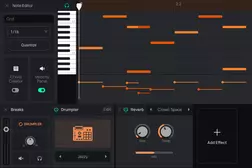
The VST Remote Beta device panel opens at the bottom of the screen.
Step 2 — Download VST Remote Bridge
Click the VST Remote link in the Device Panel. It opens the VST Remote page, where the Windows and Mac installers are available. Direct links: Windows and Mac.
Step 3 — Run the installer
Run the downloaded file. Click Install, then Close when it finishes.
After the installation Amped VST/Remote starts on its own in the background, and its icon appears in your taskbar whenever Amped Studio is open.
Note for Windows users: a blue Microsoft Defender SmartScreen window may appear. Click More info, then Run anyway. SmartScreen shows this for any app that hasn't yet reached Microsoft's download threshold, not because the file is unsafe.
Step 4 — Connect the bridge and allow access
Back in the Amped Studio Device Panel, click Try again. The browser asks permission to open AmpedVSTRemote.exe: click Open. A second prompt asks Amped Studio for permission to access other apps on your device: click Allow.
Step 5 — Select your plugin
After the Device Panel shows the Select Plugin dropdown.
Click Select Plugin. Every VST and VST3 plugin installed on your computer appears in the list. Pick one and its interface opens in a floating window. To reopen it after closing, click Edit in the Device Panel.
Custom plugin folders
If your plugins live outside the default directory, open Settings → Custom search path for VST plugins and paste the folder path. Amped Studio scans that location and adds the plugins it finds to the dropdown.
VST vs VST3: What is the Difference
The original VST format, released by Steinberg in 1996, has near-universal compatibility and a large library behind it.
VST3 is the current, more efficient version of the standard. Unlike VST2, a VST3 plugin consumes no CPU while idle — it only processes when there is audio to process. Both format versions work in Amped Studio, so there is no need to repurchase plugins you already own as VST2, but when a plugin comes in both versions, VST3 is the better choice.
Plugin Types and Limitations
Any VST or VST3 plugin on your system works through VST Remote: synths, samplers, effects, or anything else. A few examples:
- Synthesizers — wavetable, analog, FM, granular, and any other synthesis type
- Vocal processing — pitch correction, harmony, and reverb loaded as effects on a vocal track
- Mixing tools — compressors, EQs, limiters, and saturation on any track
- Sampled instruments — piano libraries, orchestral plugins, and drum machines; the audio streams locally, and only MIDI and control data pass through the bridge
Note: Currently, only one VST plugin can be active per project at a time. To work around this, bounce the first plugin's track to audio and load the next one on a new track.
Running your own plugins in the browser takes one short setup and no desktop DAW. Amped Studio's VST plugin support is the only option of its kind online right now, and a 7-day free trial covers everything you need to test it.
FAQ
Yes. VST Remote runs your installed VST and VST3 plugins inside Amped Studio's browser session in real time. Amped Studio is the only online DAW with VST support available today. The only extra software is the one-time VST Remote Bridge install.
Yes. Other online DAWs stay limited to their built-in instruments and effects. VST Remote opens your full installed plugin library inside any browser tab, on both Windows and Mac.
One active VST Remote instance per project, for now. The usual workaround is to bounce a plugin's track to audio, then load a different plugin on a new track.
Yes. VST Remote treats free and paid plugins the same way. Free VST3 plugins like Vital and SURGE XT load and perform exactly as licensed ones do.
Yes. VST Remote supports Windows and Mac. Download the Mac installer from the VST Remote page and install it once. On newer macOS versions, the VST3 format gives the best compatibility.
Start creating beats and songs in minutes. No experience needed — it's that easy.
Get started