Audiofragment
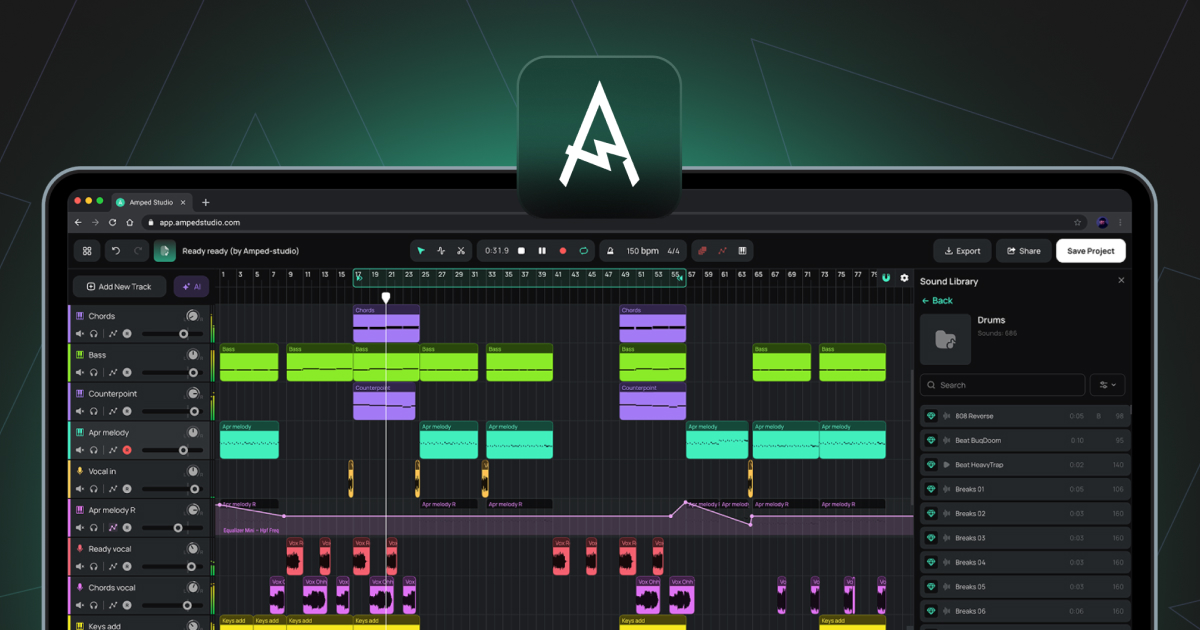
Een clip met opgenomen of geïmporteerde audiogegevens. Audioclips worden op audiotracks op de arrangementstijdlijn geplaatst.
Audiospoor
Een track voor het werken met audiobestanden. Audio kan worden geïmporteerd vanaf je computer of direct worden opgenomen via een microfoon of audio-interface. Ondersteunde bestandsformaten voor import zijn onder andere WAV, MP3, OGG, FLAC en AIFF.
Automatisering
Een baan op de arrangementtijdlijn die registreert hoe een parameter in de loop van de tijd verandert, zoals het volume of een filtercutoff. De vorm van de automatiseringslijn bepaalt hoe de parameter beweegt tijdens het afspelen.
Bounce in Place
Een functie in de Audio-editor die de huidige clip en alle bijbehorende samples, inclusief eventuele wijzigingen in de Pitch-editor, Gain-editor en Reverse, rendert naar één nieuw audiobestand dat de clip ter plekke vervangt.
Bounce naar nieuwe track
Een functie in het contextmenu van de clip waarmee een clip met alle toegepaste effecten wordt gerenderd naar een nieuw audiobestand dat op een nieuwe track wordt geplaatst.
BPM
Afkorting voor Beats Per Minute. De eenheid die wordt gebruikt om het projecttempo te meten.
Buffergrootte
Een audio-instelling die de grootte van de audioverwerkingsbuffer regelt. Lagere waarden verminderen de latentie; hogere waarden verminderen de CPU-belasting.
Akkordgenerator
Een paneel in de Note Editor voor het genereren en invoegen van akkoordprogressies in een MIDI-clip.
Clip
De basiseenheid van de inhoud op de Arrangement-tijdlijn. Clips bevatten audio- of MIDI-gegevens, en in het geval van Smart Clips ook apparaatinstellingen. Zie ook Audioclip, MIDI-clip, Smart Clip.
DAW
Afkorting van Digital Audio Workstation. Een softwareomgeving voor het opnemen, bewerken, arrangeren en mixen van audio en MIDI. Amped Studio is een browsergebaseerde DAW.
Apparaatpaneel
Het paneel onderaan de Studio dat de instrument- en effectketen voor de momenteel geselecteerde track weergeeft. Werkt in twee statussen: Standaard apparaatketen of Super Preset-paneel.
Gain-editor
Een schakelaar in de Audio Editor waarmee een horizontale lijn over de golfvorm kan worden weergegeven om het volume van de geselecteerde sample in decibels aan te passen.
Latentie
De vertraging tussen een audio-ingang, zoals een microfoon of MIDI-controller, en de audio-uitgang. Wordt geregeld via Buffer Size en Recording Latency Compensation in Settings.
Master Track
De track onderaan de tracklijst die alle andere tracks samenvoegt tot één stereo-uitgang. Effecten die aan de Master Track worden toegevoegd, worden toegepast op de volledige mix.
MIDI
Afkorting van Musical Instrument Digital Interface. Een standaardprotocol voor het verzenden van muzikale informatie tussen apparaten en software. In tegenstelling tot audio bevat MIDI geen geluid. Het bevat nootgegevens, zoals welke noten worden gespeeld, wanneer en met welke snelheid, die een virtueel instrument vervolgens gebruikt om audio te genereren.
MIDI-clip
Een clip die MIDI-nootgegevens bevat. MIDI-clips worden op instrumenttracks geplaatst en afgespeeld door het geladen virtuele instrument.
Noot-editor
De editor die wordt geopend wanneer u dubbelklikt op een MIDI-clip. Wordt gebruikt voor het tekenen, bewerken en arrangeren van MIDI-noten in een pianorolweergave.
Piano-rol
De rasterweergave binnen de noot-editor waarin MIDI-noten worden weergegeven en bewerkt. De verticale as geeft de toonhoogte weer; de horizontale as geeft de tijd weer.
Toonhoogte-editor
Een schakelaar in de Audio-editor waarmee een horizontale lijn over de golfvorm kan worden geactiveerd om de toonhoogte van het geselecteerde sample in halve tonen aan te passen.
Afspeelkop
De verticale lijn op de Arrangement-tijdlijn die de huidige afspeelpositie aangeeft.
Kwantificeren
Een functie in de Note Editor waarmee de startposities van geselecteerde MIDI-noten worden uitgelijnd op de dichtstbijzijnde rasterlijn.
Sample
In het algemeen: elk opgenomen audiofragment. In de context van de Audio-editor is een sample een segment dat is gemaakt door een audioclip te knippen met het gereedschap Splitsen. Deze segmenten kunnen vrij worden verplaatst binnen de clipgrenzen zonder dat dit invloed heeft op de algemene positie of lengte van de clip op de arrangementstijdlijn.
Slimme clip
Een clip die samen met de apparaatketeninstellingen van de bijbehorende track wordt opgeslagen. Smart Clips kunnen worden gemaakt op basis van zowel audioclips als MIDI-clips. Voor een MIDI-clip omvatten de opgeslagen instellingen het instrument en eventuele effecten. Voor een audioclip omvatten de opgeslagen instellingen alle effecten die op de track zijn toegepast. Smart Clips kunnen worden opgeslagen in de geluidsbibliotheek en in verschillende projecten worden hergebruikt. Door in de loop van de tijd een verzameling van je eigen Smart Clips op te bouwen, beschik je over een persoonlijke bibliotheek met geluiden en ideeën die je al hebt gemaakt, klaar voor gebruik in elk toekomstig project.
Stem
Een geïsoleerd audiobestand dat één instrumentgroep bevat, gescheiden van een gemengde opname, zoals zang, drums, bas of andere instrumenten. Stems worden geproduceerd door de AI Splitter, die toegankelijk is via AI Tools in het hoofdmenu of via de paarse AI Tools-knop links van de arrangementstijdlijn.
Super Preset
Een vooraf geconfigureerde combinatie van een virtueel instrument en een effectketen, waarbij de belangrijkste parameters voor het vormgeven van het geluid worden weergegeven in een uniform bedieningspaneel. Kan worden geladen via + Add New Track of via de + Super Preset-knop in de zijbalk van het Device Panel.
Velocity
Een waarde die aan elke MIDI-noot is gekoppeld en aangeeft hoe hard de noot wordt aangeslagen. Hogere velocity-waarden produceren over het algemeen een luider of helderder geluid, afhankelijk van het instrument. Te bewerken met behulp van de velocity-balken in het Velocity-paneel binnen de Note Editor.
Virtueel toetsenbord
Een functie die MIDI-nootinvoer mogelijk maakt via het QWERTY-toetsenbord van de computer. In- en uitschakelbaar met (Cmd/Ctrl+K), toegankelijk via de werkbalk.
VST3
Een plug-informaat voor virtuele instrumenten en effecten, ontwikkeld door Steinberg. Amped Studio ondersteunt VST3-plug-ins via de VSTremote-bridge bij Premium- en Premium + AI-abonnementen.