Klip audio
Klip zawierający nagrane lub zaimportowane dane audio. Klipy audio umieszcza się na ścieżkach audio na osi czasu aranżacji.
Ścieżka audio
Ścieżka służąca do pracy z plikami audio. Dźwięk można zaimportować z komputera lub nagrać bezpośrednio z mikrofonu lub interfejsu audio. Obsługiwane formaty plików do importu to WAV, MP3, OGG, FLAC i AIFF.
Automatyzacja
Pasek na osi czasu aranżacji, który rejestruje zmiany parametrów w czasie, takich jak głośność lub częstotliwość odcięcia filtra. Kształt linii automatyzacji określa sposób zmiany parametru podczas odtwarzania.
Bounce in Place
Funkcja w edytorze audio, która renderuje bieżący klip i wszystkie jego próbki, w tym wszelkie zmiany wprowadzone w edytorze wysokości dźwięku, edytorze wzmocnienia i odwróceniu, do jednego nowego pliku audio, który zastępuje klip w miejscu.
Bounce to New Track
Funkcja w menu kontekstowym klipu, która renderuje klip wraz z zastosowanymi efektami do nowego pliku audio umieszczonego na nowej ścieżce.
BPM
Skrót od Beats Per Minute (uderzeń na minutę). Jednostka używana do pomiaru tempa projektu.
Rozmiar bufora
Ustawienie audio, które kontroluje rozmiar bufora przetwarzania audio. Niższe wartości zmniejszają opóźnienie; wyższe wartości zmniejszają obciążenie procesora.
Kreator akordów
Panel w edytorze nut służący do generowania i wstawiania progresji akordów do klipu MIDI.
Klip
Podstawowa jednostka zawartości na osi czasu aranżacji. Klipy zawierają dane audio lub MIDI, a w przypadku klipów inteligentnych – ustawienia urządzeń. Zobacz także: Klip audio, Klip MIDI, Klip inteligentny.
DAW
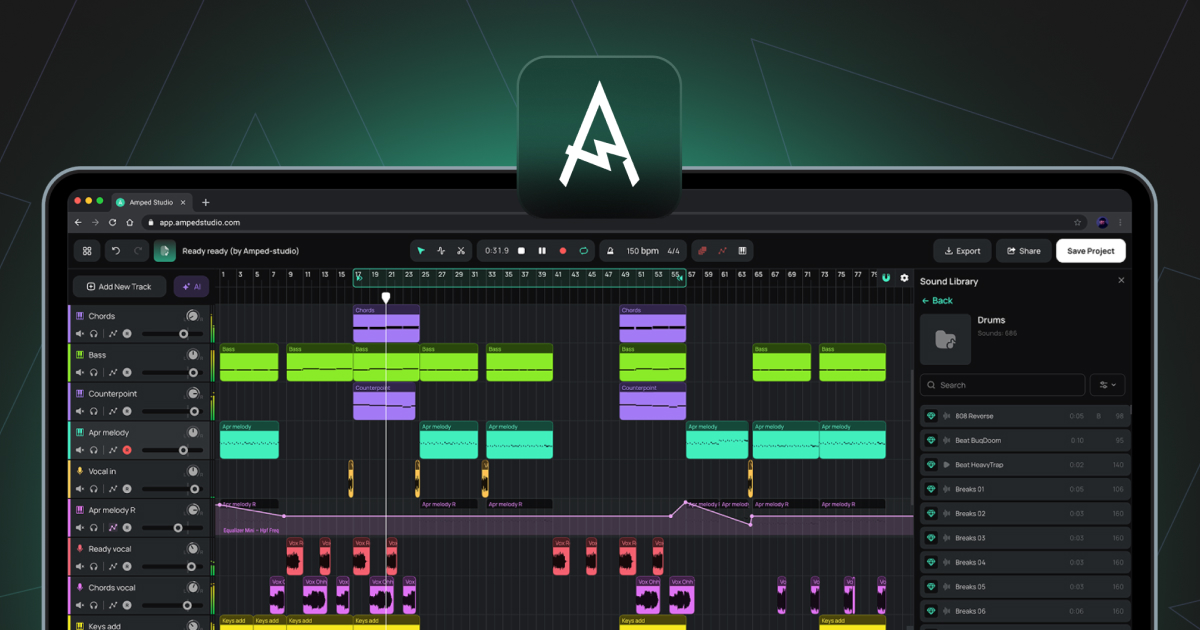
Skrót od Digital Audio Workstation. Środowisko programowe służące do nagrywania, edycji, aranżacji i miksowania audio oraz MIDI. Amped Studio to DAW oparty na przeglądarce.
Panel urządzeń
Panel u dołu okna Studio, który wyświetla łańcuch instrumentów i efektów dla aktualnie wybranej ścieżki. Działa w dwóch trybach: Standardowy łańcuch urządzeń lub Panel superpresetów.
Edytor wzmocnienia
Przełącznik w edytorze audio, który włącza poziomą linię nad przebiegiem fali, umożliwiającą regulację głośności wybranego sampla w decybelach.
Opóźnienie
Opóźnienie między wejściem audio, takim jak mikrofon lub kontroler MIDI, a wyjściem audio. Kontrolowane za pomocą opcji Rozmiar bufora i Kompensacja opóźnienia nagrywania w Ustawieniach.
Ścieżka główna
Ścieżka na dole listy ścieżek, która sumuje wszystkie pozostałe ścieżki w jedno wyjście stereo. Efekty dodane do ścieżki głównej są stosowane do całego miksowania.
MIDI
Skrót od Musical Instrument Digital Interface. Standardowy protokół służący do przesyłania informacji muzycznych między urządzeniami a oprogramowaniem. W przeciwieństwie do audio, MIDI nie zawiera dźwięku. Zawiera dane dotyczące nut, takie jak to, które nuty są grane, kiedy i z jaką siłą, które następnie wykorzystuje wirtualny instrument do generowania dźwięku.
Klip MIDI
Klip zawierający dane nut MIDI. Klipy MIDI umieszcza się na ścieżkach instrumentów i odtwarza za pomocą załadowanego instrumentu wirtualnego.
Edytor nut
Edytor, który otwiera się po dwukrotnym kliknięciu klipu MIDI. Służy do rysowania, edytowania i aranżowania nut MIDI w widoku pianoli.
Rolka fortepianowa
Widok siatki w edytorze nut, w którym wyświetlane i edytowane są nuty MIDI. Oś pionowa reprezentuje wysokość dźwięku, a oś pozioma — czas.
Edytor wysokości dźwięku
Przełącznik w edytorze audio, który włącza poziomą linię nad przebiegiem fali, umożliwiającą regulację wysokości dźwięku wybranego sampla w półtonach.
Głowica odtwarzania
Pionowa linia na osi czasu aranżacji, która wskazuje aktualną pozycję odtwarzania.
Kwantyzacja
Funkcja w edytorze nut, która przyciąga pozycje początkowe wybranych nut MIDI do najbliższej linii siatki.
Próbka
W ogólnym ujęciu – dowolny nagrany fragment audio. W kontekście edytora audio próbka to segment utworzony poprzez wycięcie klipu audio za pomocą narzędzia Podział. Segmenty te można dowolnie przesuwać w obrębie klipu bez wpływu na ogólną pozycję lub długość klipu na osi czasu aranżacji.
Inteligentny klip
Klip zapisany wraz z ustawieniami łańcucha urządzeń jego ścieżki. Klipy inteligentne można tworzyć zarówno z klipów audio, jak i klipów MIDI. W przypadku klipu MIDI zapisane ustawienia obejmują instrument i wszelkie efekty. W przypadku klipu audio zapisane ustawienia obejmują wszelkie efekty zastosowane do ścieżki. Klipy inteligentne można zapisywać w bibliotece dźwięków i ponownie wykorzystywać w różnych projektach. Tworzenie z biegiem czasu kolekcji własnych klipów inteligentnych pozwala uzyskać osobistą bibliotekę dźwięków i pomysłów, które już opracowałeś, gotowych do wykorzystania w dowolnym przyszłym projekcie.
Stem
Wyodrębniony plik audio zawierający pojedynczą grupę instrumentów oddzieloną od zmiksowanego nagrania, np. wokal, perkusja, bas lub inne. Ścieżki są tworzone przez AI Splitter, dostępny poprzez AI Tools w menu głównym lub fioletowy przycisk AI Tools po lewej stronie osi czasu aranżacji.
Super Preset
Wstępnie skonfigurowana kombinacja instrumentu wirtualnego i łańcucha efektów, z kluczowymi parametrami kształtującymi brzmienie wyświetlanymi w ujednoliconym panelu sterowania. Można ją załadować za pomocą opcji + Dodaj nową ścieżkę lub przycisku + Super Preset na pasku bocznym panelu urządzeń.
Siła uderzenia
Wartość przypisana do każdej nuty MIDI, reprezentująca siłę uderzenia. Wyższe wartości velocity zazwyczaj dają głośniejszy lub jaśniejszy dźwięk, w zależności od instrumentu. Edytuje się za pomocą pasków velocity w panelu Velocity w edytorze nut.
Wirtualna klawiatura
Funkcja umożliwiająca wprowadzanie nut MIDI za pomocą klawiatury QWERTY komputera. Włączana za pomocą skrótu (Cmd/Ctrl+K), dostępnego na pasku narzędzi.
VST3
Format wtyczek dla wirtualnych instrumentów i efektów opracowany przez firmę Steinberg. Amped Studio obsługuje wtyczki VST3 za pośrednictwem mostka VSTremote w ramach subskrypcji Premium i Premium + AI.