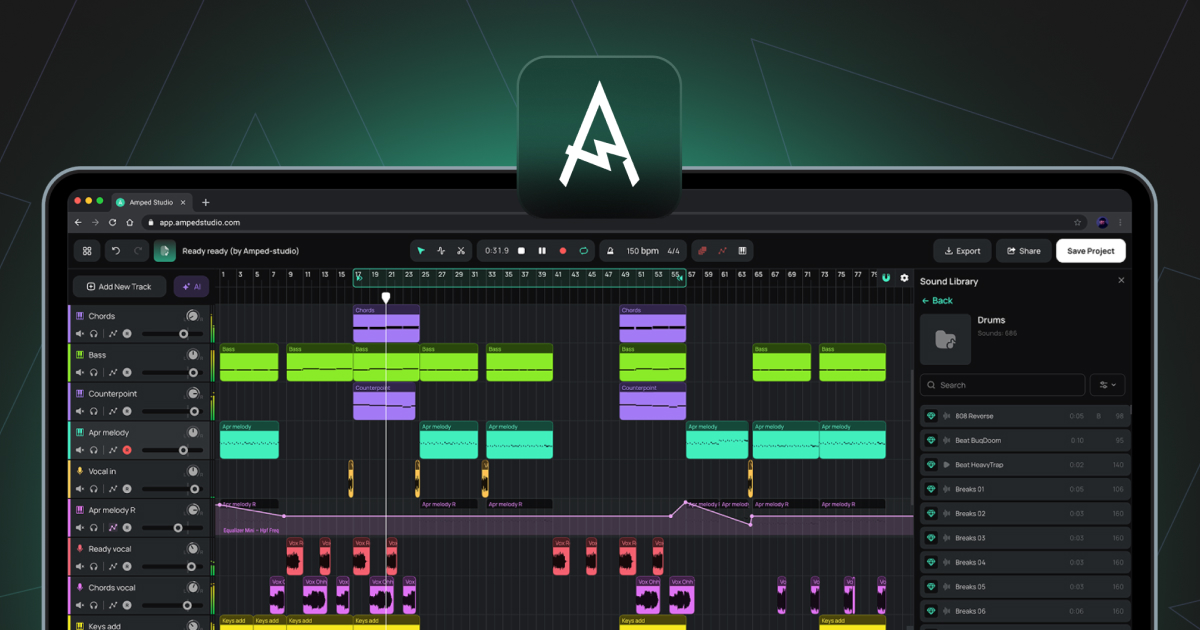
Audioclip
Ein Clip, der aufgenommene oder importierte Audiodaten enthält. Audioclips werden auf Audiospuren in der Arrangement-Zeitleiste platziert.
Audiospur
Eine Spur zur Bearbeitung von Audiodateien. Audio kann von Ihrem Computer importiert oder direkt über ein Mikrofon oder ein Audio-Interface aufgenommen werden. Zu den unterstützten Dateiformaten für den Import gehören WAV, MP3, OGG, FLAC und AIFF.
Automation
Eine Spur auf der Arrangement-Timeline, die aufzeichnet, wie sich ein Parameter im Laufe der Zeit verändert, beispielsweise die Lautstärke oder die Filter-Cutoff-Frequenz. Die Form der Automationslinie bestimmt, wie sich der Parameter während der Wiedergabe verändert.
An Ort und Stelle rendern
Eine Funktion im Audio-Editor, die den aktuellen Clip und alle seine Samples, einschließlich aller Änderungen im Pitch-Editor, Gain-Editor und Reverse, in eine einzige neue Audiodatei rendert, die den Clip an Ort und Stelle ersetzt.
Auf neue Spur exportieren
Eine Funktion im Clip-Kontextmenü, die einen Clip mit allen angewendeten Effekten in eine neue Audiodatei rendert, die auf einer neuen Spur abgelegt wird.
BPM
Abkürzung für „Beats Per Minute“. Die Einheit, die zur Messung des Projekttempos verwendet wird.
Puffergröße
Eine Audioeinstellung, die die Größe des Audioverarbeitungspuffers steuert. Niedrigere Werte reduzieren die Latenz; höhere Werte reduzieren die CPU-Auslastung.
Akkord-Generator
Ein Bedienfeld im Noteneditor zum Erzeugen und Einfügen von Akkordfolgen in einen MIDI-Clip.
Clip
Die Grundeinheit für Inhalte auf der Arrangement-Timeline. Clips enthalten entweder Audio- oder MIDI-Daten sowie, im Falle von Smart Clips, Geräteeinstellungen. Siehe auch Audio-Clip, MIDI-Clip, Smart Clip.
DAW
Abkürzung für Digital Audio Workstation. Eine Softwareumgebung zum Aufnehmen, Bearbeiten, Arrangieren und Abmischen von Audio und MIDI. Amped Studio ist eine browserbasierte DAW.
Geräte-Panel
Das Bedienfeld am unteren Rand des Studios, das die Instrumenten- und Effektkette für die aktuell ausgewählte Spur anzeigt. Es verfügt über zwei Betriebsmodi: Standard-Gerätekette oder Super-Preset-Bedienfeld.
Gain-Editor
Ein Schalter im Audio-Editor, der eine horizontale Linie über der Wellenform aktiviert, um die Lautstärke des ausgewählten Samples in Dezibel anzupassen.
Latenz
Die Verzögerung zwischen einem Audioeingang, wie z. B. einem Mikrofon oder MIDI-Controller, und dem Audioausgang. Wird über die Puffergröße und die Kompensation der Aufnahmelatenz in den Einstellungen gesteuert.
Master-Spur
Die Spur am Ende der Spurliste, die alle anderen Spuren zu einem einzigen Stereoausgang summiert. Effekte, die der Master-Spur hinzugefügt werden, werden auf den gesamten Mix angewendet.
MIDI
Abkürzung für „Musical Instrument Digital Interface“. Ein Standardprotokoll zur Übertragung von Musikdaten zwischen Geräten und Software. Im Gegensatz zu Audio enthält MIDI keine Töne. Es enthält Notendaten wie beispielsweise welche Noten gespielt werden, wann und mit welcher Anschlagstärke, die ein virtuelles Instrument dann zur Erzeugung von Audio verwendet.
MIDI-Clip
Ein Clip, der MIDI-Notendaten enthält. MIDI-Clips werden auf Instrumentenspuren platziert und vom geladenen virtuellen Instrument wiedergegeben.
Noten-Editor
Der Editor, der sich öffnet, wenn Sie auf einen MIDI-Clip doppelklicken. Dient zum Zeichnen, Bearbeiten und Arrangieren von MIDI-Noten in einer Pianoroll-Ansicht.
Piano-Roll
Die Rasteransicht im Noten-Editor, in der MIDI-Noten angezeigt und bearbeitet werden. Die vertikale Achse stellt die Tonhöhe dar; die horizontale Achse stellt die Zeit dar.
Tonhöhen-Editor
Ein Schalter im Audio-Editor, der eine horizontale Linie über der Wellenform aktiviert, um die Tonhöhe des ausgewählten Samples in Halbtönen anzupassen.
Wiedergabemarker
Die vertikale Linie auf der Arrangement-Zeitleiste, die die aktuelle Wiedergabeposition anzeigt.
Quantisieren
Eine Funktion im Noten-Editor, die die Startpositionen ausgewählter MIDI-Noten an die nächste Rasterlinie ausrichtet.
Sample
Im allgemeinen Sprachgebrauch jedes aufgezeichnete Audiofragment. Im Kontext des Audio-Editors ist ein Sample ein Segment, das durch das Schneiden eines Audio-Clips mit dem Split-Werkzeug erstellt wird. Diese Segmente können innerhalb der Clip-Grenzen frei verschoben werden, ohne die Gesamtposition oder -länge des Clips auf der Arrangement-Zeitleiste zu beeinflussen.
Smart-Clip
Ein Clip, der zusammen mit den Geräteketten-Einstellungen seiner Spur gespeichert wird. Smart Clips können entweder aus Audio-Clips oder MIDI-Clips erstellt werden. Bei einem MIDI-Clip umfassen die gespeicherten Einstellungen das Instrument und alle Effekte. Bei einem Audio-Clip umfassen die gespeicherten Einstellungen alle auf die Spur angewendeten Effekte. Smart-Clips können in der Sound-Bibliothek gespeichert und projektübergreifend wiederverwendet werden. Wenn Sie im Laufe der Zeit eine Sammlung Ihrer eigenen Smart-Clips aufbauen, erhalten Sie eine persönliche Bibliothek mit Sounds und Ideen, die Sie bereits erstellt haben und die in jedem zukünftigen Projekt einsatzbereit sind.
Stem
Eine isolierte Audiodatei, die eine einzelne Instrumentengruppe enthält, die aus einer gemischten Aufnahme herausgelöst wurde, z. B. Gesang, Schlagzeug, Bass oder Sonstiges. Stems werden vom AI Splitter erzeugt, auf den Sie über „AI Tools“ im Hauptmenü oder über die violette AI-Tools-Schaltfläche links neben der Arrangement-Timeline zugreifen können.
Super-Preset
Eine vorkonfigurierte Kombination aus einem virtuellen Instrument und einer Effektkette, bei der wichtige Parameter zur Klanggestaltung in einem einheitlichen Bedienfeld angezeigt werden. Kann über „+ Neue Spur hinzufügen“ oder über die Schaltfläche „+ Super-Preset“ in der Seitenleiste des Gerätepanels geladen werden.
Velocity
Ein Wert, der jeder MIDI-Note zugeordnet ist und angibt, wie stark die Note angeschlagen wird. Höhere Velocity-Werte erzeugen in der Regel einen lauteren oder helleren Klang, je nach Instrument. Die Bearbeitung erfolgt über die Velocity-Balken im Velocity-Panel im Note-Editor.
Virtuelles Keyboard
Eine Funktion, die die Eingabe von MIDI-Noten über die QWERTY-Tastatur des Computers ermöglicht. Wird mit (Cmd/Strg+K) umgeschaltet und ist über die Symbolleiste zugänglich.
VST3
Ein von Steinberg entwickeltes Plugin-Format für virtuelle Instrumente und Effekte. Amped Studio unterstützt VST3-Plugins über die VSTremote-Bridge bei Premium- und Premium + AI-Abonnements.