Clip de audio
Clip que contiene datos de audio grabados o importados. Los clips de audio se colocan en pistas de audio en la línea de tiempo del arreglo.
Pista de audio
Una pista para trabajar con archivos de audio. El audio se puede importar desde tu ordenador o grabarse directamente desde un micrófono o una interfaz de audio. Los formatos de archivo compatibles para la importación incluyen WAV, MP3, OGG, FLAC y AIFF.
Automatización
Una línea en la línea de tiempo de arreglos que registra cómo cambia un parámetro a lo largo del tiempo, como el volumen o el corte de un filtro. La forma de la línea de automatización determina cómo se mueve el parámetro durante la reproducción.
Bounce in Place
Una función del Editor de audio que renderiza el clip actual y todas sus muestras, incluidos los cambios del Editor de tono, el Editor de ganancia y el Editor de inversión, en un único archivo de audio nuevo que sustituye al clip en su lugar.
Exportar a nueva pista
Una función del menú contextual del clip que renderiza un clip con los efectos aplicados en un nuevo archivo de audio colocado en una nueva pista.
BPM
Abreviatura de «Beats Per Minute» (batidos por minuto). La unidad utilizada para medir el tempo del proyecto.
Tamaño del búfer
Un ajuste de audio que controla el tamaño del búfer de procesamiento de audio. Los valores más bajos reducen la latencia; los valores más altos reducen la carga de la CPU.
Creador de acordes
Un panel dentro del Editor de notas para generar e insertar progresiones de acordes en un clip MIDI.
Clip
La unidad básica de contenido en la línea de tiempo del arreglo. Los clips contienen datos de audio o MIDI y, en el caso de los clips inteligentes, ajustes de dispositivos. Véase también Clip de audio, Clip MIDI, Clip inteligente.
DAW
Abreviatura de Estación de Trabajo de Audio Digital. Entorno de software para grabar, editar, arreglar y mezclar audio y MIDI. Amped Studio es un DAW basado en navegador.
Panel de dispositivos
El panel situado en la parte inferior de Studio que muestra la cadena de instrumentos y efectos de la pista seleccionada actualmente. Funciona en dos modos: Cadena de dispositivos estándar o Panel de superpresets.
Editor de ganancia
Un conmutador en el Editor de audio que activa una línea horizontal sobre la forma de onda para ajustar el volumen de la muestra seleccionada en decibelios.
Latencia
El retraso entre una entrada de audio, como un micrófono o un controlador MIDI, y la salida de audio. Se controla mediante el tamaño del búfer y la compensación de latencia de grabación en Ajustes.
Pista maestra
La pista situada al final de la lista de pistas que suma todas las demás pistas en una única salida estéreo. Los efectos añadidos a la pista maestra se aplican a toda la mezcla.
MIDI
Abreviatura de Musical Instrument Digital Interface. Un protocolo estándar para transmitir información musical entre dispositivos y software. A diferencia del audio, el MIDI no contiene sonido. Contiene datos de notas, como qué notas se tocan, cuándo y a qué velocidad, que un instrumento virtual utiliza luego para generar audio.
Clip MIDI
Clip que contiene datos de notas MIDI. Los clips MIDI se colocan en pistas de instrumentos y son reproducidos por el instrumento virtual cargado.
Editor de notas
El editor que se abre al hacer doble clic en un clip MIDI. Se utiliza para dibujar, editar y organizar notas MIDI en una vista de piano roll.
Piano roll
La vista de cuadrícula dentro del Editor de notas donde se muestran y editan las notas MIDI. El eje vertical representa el tono; el eje horizontal representa el tiempo.
Editor de tono
Un conmutador en el Editor de audio que activa una línea horizontal sobre la forma de onda para ajustar el tono de la muestra seleccionada en semitonos.
Cabezal de reproducción
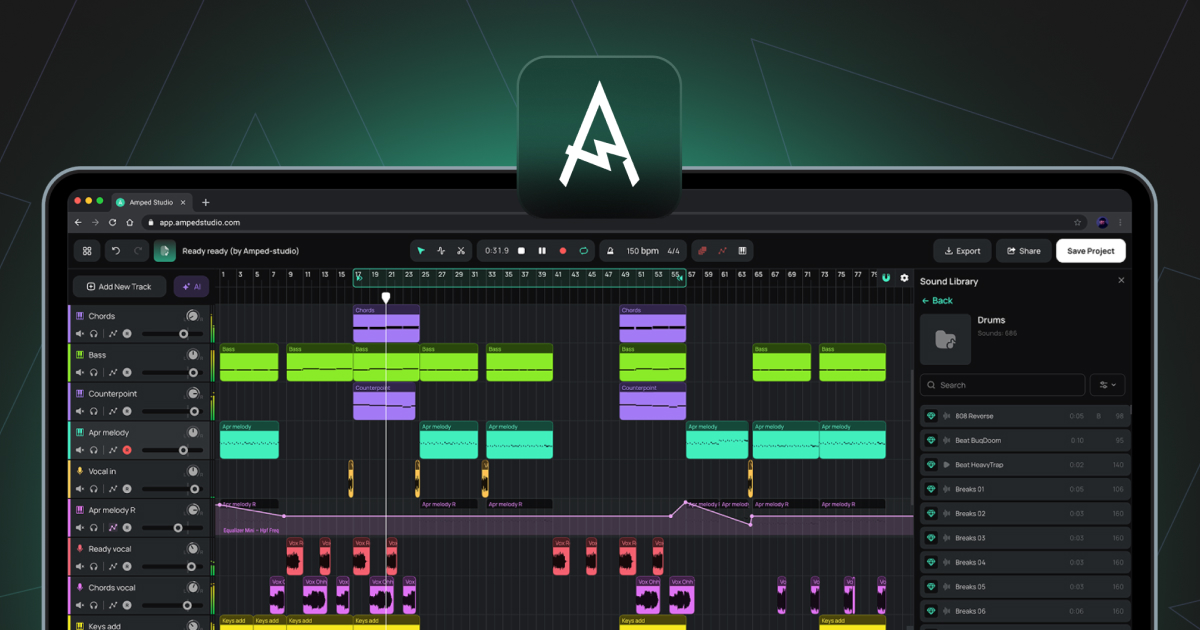
La línea vertical en la línea de tiempo de arreglos que indica la posición de reproducción actual.
Cuantizar
Función del Editor de notas que ajusta las posiciones de inicio de las notas MIDI seleccionadas a la línea de cuadrícula más cercana.
Muestra
En uso general, cualquier fragmento de audio grabado. En el contexto del Editor de audio, una muestra es un segmento creado al cortar un clip de audio con la herramienta Dividir. Estos segmentos se pueden reubicar libremente dentro de los límites del clip sin afectar a la posición o duración general del clip en la línea de tiempo de arreglos.
Clip inteligente
Clip guardado junto con la configuración de la cadena de dispositivos de su pista. Los clips inteligentes se pueden crear a partir de clips de audio o de clips MIDI. En el caso de un clip MIDI, la configuración guardada incluye el instrumento y cualquier efecto. En el caso de un clip de audio, la configuración guardada incluye cualquier efecto aplicado a la pista. Los clips inteligentes se pueden guardar en la biblioteca de sonidos y reutilizar en distintos proyectos. Crear una colección de tus propios clips inteligentes con el tiempo te proporciona una biblioteca personal de sonidos e ideas que ya has elaborado, listas para usar en cualquier proyecto futuro.
Stem
Un archivo de audio aislado que contiene un único grupo de instrumentos separado de una grabación mezclada, como voces, batería, bajo u otros. Los stems se producen mediante el AI Splitter, al que se accede a través de AI Tools en el menú principal o del botón morado brillante de AI Tools situado a la izquierda de la línea de tiempo de arreglos.
Superpreset
Una combinación preconfigurada de un instrumento virtual y una cadena de efectos, con los parámetros clave para dar forma al sonido disponibles en un panel de control unificado. Se puede cargar a través de + Añadir nueva pista o mediante el botón + Superpreset de la barra lateral del Panel de dispositivos.
Velocidad
Valor asociado a cada nota MIDI que representa la fuerza con la que se toca la nota. Los valores de velocidad más altos suelen producir un sonido más fuerte o brillante, dependiendo del instrumento. Se edita mediante las barras de velocidad del panel de velocidad dentro del editor de notas.
Teclado virtual
Una función que permite introducir notas MIDI utilizando el teclado QWERTY del ordenador. Se activa con (Cmd/Ctrl+K), accesible desde la barra de herramientas.
VST3
Formato de plugin para instrumentos virtuales y efectos desarrollado por Steinberg. Amped Studio es compatible con plugins VST3 a través del puente VSTremote en las suscripciones Premium y Premium + AI.