Audio Clip
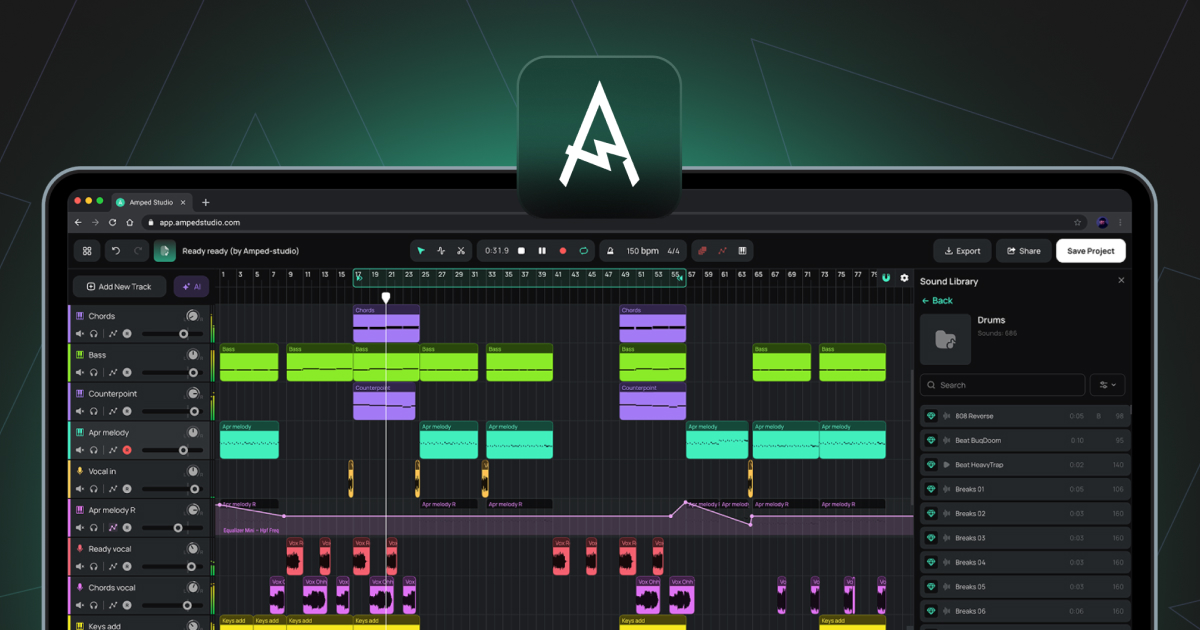
A clip containing recorded or imported audio data. Audio Clips are placed on Audio tracks on the Arrangement Timeline.
Audio Track
A track for working with audio files. Audio can be imported from your computer or recorded directly from a microphone or audio interface. Supported file formats for import include WAV, MP3, OGG, FLAC, and AIFF.
Automation
A lane on the Arrangement Timeline that records how a parameter changes over time, such as volume or a filter cutoff. The shape of the automation line determines how the parameter moves during playback.
Bounce in Place
A function in the Audio Editor that renders the current clip and all its samples, including any Pitch Editor, Gain Editor, and Reverse changes, into a single new audio file that replaces the clip in place.
Bounce to New Track
A function in the Clip Context Menu that renders a clip with any applied effects into a new audio file placed on a new track.
BPM
Short for Beats Per Minute. The unit used to measure project tempo.
Buffer Size
An audio setting that controls the size of the audio processing buffer. Lower values reduce latency; higher values reduce CPU load.
Chord Creator
A panel within the Note Editor for generating and inserting chord progressions into a MIDI Clip.
Clip
The basic unit of content on the Arrangement Timeline. Clips contain either audio or MIDI data, and in case of Smart Clips device settings. See also Audio Clip, MIDI Clip, Smart Clip.
DAW
Short for Digital Audio Workstation. A software environment for recording, editing, arranging, and mixing audio and MIDI. Amped Studio is a browser-based DAW.
Device Panel
The panel at the bottom of the Studio that displays the instrument and effect chain for the currently selected track. Operates in two states: Standard Device Chain or Super Preset Panel.
Gain Editor
A toggle in the Audio Editor that enables a horizontal line over the waveform for adjusting the loudness of the selected sample in decibels.
Latency
The delay between an audio input, such as a microphone or MIDI controller, and the audio output. Controlled via Buffer Size and Recording Latency Compensation in Settings.
Master Track
The track at the bottom of the track list that sums all other tracks into a single stereo output. Effects added to the Master Track are applied to the full mix.
MIDI
Short for Musical Instrument Digital Interface. A standard protocol for transmitting musical information between devices and software. Unlike audio, MIDI does not contain sound. It contains note data such as which notes are played, when, and at what velocity, which a virtual instrument then uses to generate audio.
MIDI Clip
A clip containing MIDI note data. MIDI Clips are placed on Instrument tracks and played back by the loaded virtual instrument.
Note Editor
The editor that opens when you double-click a MIDI Clip. Used for drawing, editing, and arranging MIDI notes in a piano roll view.
Piano Roll
The grid view within the Note Editor where MIDI notes are displayed and edited. The vertical axis represents pitch; the horizontal axis represents time.
Pitch Editor
A toggle in the Audio Editor that enables a horizontal line over the waveform for adjusting the pitch of the selected sample in semitones.
Playhead
The vertical line on the Arrangement Timeline that indicates the current playback position.
Quantize
A function in the Note Editor that snaps the start positions of selected MIDI notes to the nearest grid line.
Sample
In general use, any recorded fragment of audio. In the context of the Audio Editor, a sample is a segment created by cutting an Audio Clip using the Split tool. These segments can be freely repositioned within the clip boundary without affecting the clip's overall position or length on the Arrangement Timeline.
Smart Clip
A clip saved together with the device chain settings of its track. Smart Clips can be created from either Audio Clips or MIDI Clips. For a MIDI Clip, the saved settings include the instrument and any effects. For an Audio Clip, the saved settings include any effects applied to the track. Smart Clips can be saved to the Sound Library and reused across projects. Building a collection of your own Smart Clips over time gives you a personal library of sounds and ideas you have already crafted, ready to use in any future project.
Stem
An isolated audio file containing a single instrument group separated from a mixed recording, such as Vocals, Drums, Bass, or Other. Stems are produced by the AI Splitter, accessible via AI Tools in the Main Menu or the AI Tools purple sparkle button to the left of the Arrangement Timeline.
Super Preset
A pre-configured combination of a virtual instrument and effect chain, with key sound-shaping parameters surfaced in a unified control panel. Can be loaded via + Add New Track or via the + Super Preset button in the Device Panel sidebar.
Velocity
A value associated with each MIDI note representing how hard the note is struck. Higher velocity values generally produce a louder or brighter sound, depending on the instrument. Edited using the velocity bars in the Velocity Panel within the Note Editor.
Virtual Keyboard
A feature that enables MIDI note input using the computer's QWERTY keyboard. Toggled with (Cmd/Ctrl+K), accessible from the Tool Bar.
VST3
A plugin format for virtual instruments and effects developed by Steinberg. Amped Studio supports VST3 plugins via the VSTremote bridge on Premium and Premium + AI subscriptions.