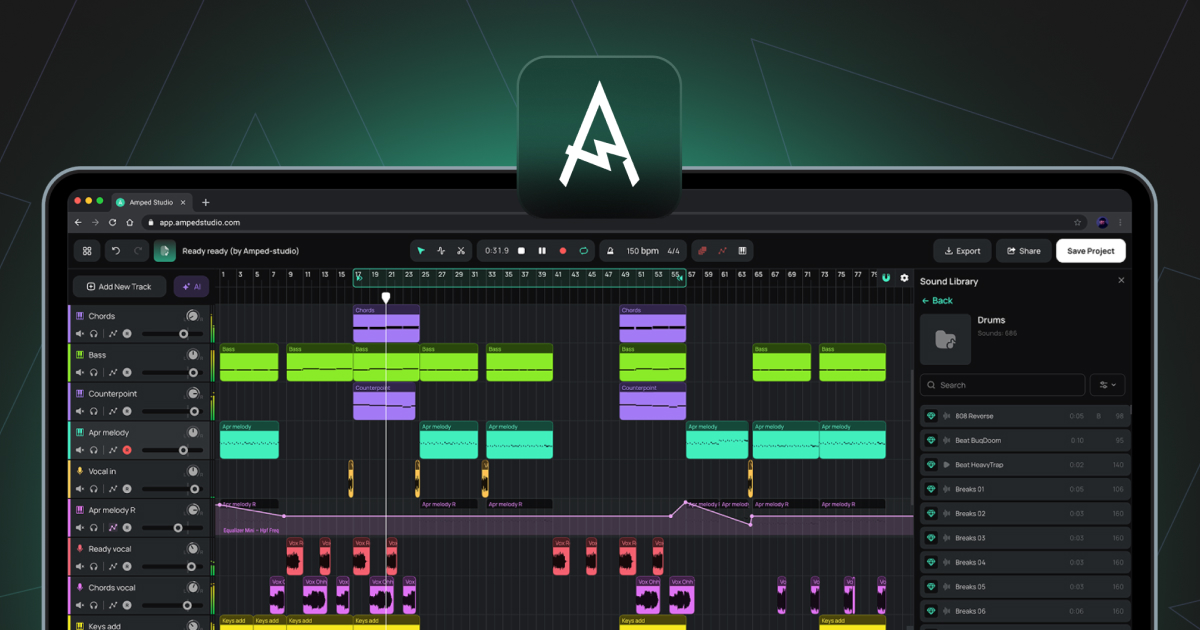
Extrait contenant des données audio enregistrées ou importées. Les extraits audio sont placés sur des pistes audio de la timeline d'arrangement.
Piste audio
Une piste permettant de travailler avec des fichiers audio. L'audio peut être importé depuis votre ordinateur ou enregistré directement à partir d'un microphone ou d'une interface audio. Les formats de fichiers pris en charge pour l'importation incluent WAV, MP3, OGG, FLAC et AIFF.
Automatisation
Une piste sur la timeline d'arrangement qui enregistre l'évolution d'un paramètre au fil du temps, comme le volume ou la fréquence de coupure d'un filtre. La forme de la courbe d'automatisation détermine la façon dont le paramètre évolue pendant la lecture.
Bounce in Place
Une fonction de l'éditeur audio qui rend le clip actuel et tous ses échantillons, y compris les modifications apportées par l'éditeur de hauteur, l'éditeur de gain et l'inversion, dans un seul nouveau fichier audio qui remplace le clip à l'emplacement d'origine.
Exporter vers une nouvelle piste
Fonction du menu contextuel du clip qui effectue le rendu d'un clip avec tous les effets appliqués dans un nouveau fichier audio placé sur une nouvelle piste.
BPM
Abréviation de « Beats Per Minute » (battements par minute). Unité utilisée pour mesurer le tempo d'un projet.
Taille du tampon
Paramètre audio qui contrôle la taille de la mémoire tampon de traitement audio. Des valeurs faibles réduisent la latence ; des valeurs élevées réduisent la charge du processeur.
Créateur d'accords
Panneau de l'éditeur de notes permettant de générer et d'insérer des progressions d'accords dans un clip MIDI.
Clip
Unité de base du contenu sur la timeline d'arrangement. Les clips contiennent soit des données audio, soit des données MIDI, et dans le cas des Smart Clips, des paramètres de périphériques. Voir également Clip audio, Clip MIDI, Smart Clip.
DAW
Abréviation de Digital Audio Workstation (station de travail audio numérique). Environnement logiciel permettant d'enregistrer, d'éditer, d'arranger et de mixer des données audio et MIDI. Amped Studio est une DAW basée sur un navigateur.
Panneau des périphériques
Panneau situé au bas de Studio qui affiche la chaîne d'instruments et d'effets de la piste actuellement sélectionnée. Il fonctionne selon deux modes : Chaîne de périphériques standard ou Panneau Super Preset.
Éditeur de gain
Bouton dans l'éditeur audio qui active une ligne horizontale sur la forme d'onde pour régler le volume de l'échantillon sélectionné en décibels.
Latence
Le délai entre une entrée audio, telle qu'un microphone ou un contrôleur MIDI, et la sortie audio. Contrôlé via la taille du tampon et la compensation de la latence d'enregistrement dans les paramètres.
Piste Master
La piste située au bas de la liste des pistes qui regroupe toutes les autres pistes en une seule sortie stéréo. Les effets ajoutés à la piste principale s'appliquent à l'ensemble du mixage.
MIDI
Abréviation de Musical Instrument Digital Interface. Protocole standard permettant de transmettre des informations musicales entre des appareils et des logiciels. Contrairement à l'audio, le MIDI ne contient pas de son. Il contient des données de notes, telles que les notes jouées, le moment où elles sont jouées et leur vélocité, que l'instrument virtuel utilise ensuite pour générer du son.
Clip MIDI
Clip contenant des données de notes MIDI. Les clips MIDI sont placés sur des pistes d'instrument et lus par l'instrument virtuel chargé.
Éditeur de notes
L'éditeur qui s'ouvre lorsque vous double-cliquez sur un clip MIDI. Il sert à dessiner, modifier et arranger les notes MIDI dans une vue Piano Roll.
Piano roll
La vue en grille dans l'éditeur de notes où les notes MIDI sont affichées et modifiées. L'axe vertical représente la hauteur ; l'axe horizontal représente le temps.
Éditeur de hauteur
Bouton de l'éditeur audio qui active une ligne horizontale sur la forme d'onde pour ajuster la hauteur du sample sélectionné par demi-tons.
Tête de lecture
Ligne verticale sur la timeline d'arrangement qui indique la position de lecture actuelle.
Quantifier
Fonction de l'éditeur de notes qui aligne les positions de début des notes MIDI sélectionnées sur la ligne de grille la plus proche.
Échantillon
En général, tout fragment audio enregistré. Dans le contexte de l'éditeur audio, un échantillon est un segment créé en coupant un clip audio à l'aide de l'outil de division. Ces segments peuvent être librement repositionnés à l'intérieur des limites du clip sans affecter la position ou la longueur globale du clip sur la timeline d'arrangement.
Clip intelligent
Clip enregistré avec les paramètres de la chaîne de périphériques de sa piste. Les clips intelligents peuvent être créés à partir de clips audio ou de clips MIDI. Pour un clip MIDI, les paramètres enregistrés incluent l'instrument et les effets éventuels. Pour un clip audio, les paramètres enregistrés incluent les effets appliqués à la piste. Les clips intelligents peuvent être enregistrés dans la bibliothèque de sons et réutilisés d'un projet à l'autre. En constituant au fil du temps une collection de vos propres clips intelligents, vous disposez d'une bibliothèque personnelle de sons et d'idées que vous avez déjà créés, prêts à être utilisés dans n'importe quel projet futur.
Stem
Fichier audio isolé contenant un seul groupe d'instruments séparé d'un enregistrement mixé, tel que Voix, Batterie, Basse ou Autre. Les stems sont générés par l'AI Splitter, accessible via AI Tools dans le menu principal ou via le bouton violet scintillant AI Tools situé à gauche de la timeline d'arrangement.
Super Preset
Une combinaison préconfigurée d'un instrument virtuel et d'une chaîne d'effets, avec les paramètres clés de modelage du son regroupés dans un panneau de contrôle unifié. Peut être chargé via + Ajouter une nouvelle piste ou via le bouton + Super Preset dans la barre latérale du panneau des périphériques.
Vélocité
Valeur associée à chaque note MIDI représentant la force avec laquelle la note est jouée. Des valeurs de vélocité plus élevées produisent généralement un son plus fort ou plus brillant, selon l'instrument. Modifiable à l'aide des barres de vélocité dans le panneau « Velocity » de l'éditeur de notes.
Clavier virtuel
Fonctionnalité permettant la saisie de notes MIDI à l'aide du clavier QWERTY de l'ordinateur. Activable via (Cmd/Ctrl+K), accessible depuis la barre d'outils.
VST3
Format de plugin pour instruments virtuels et effets développé par Steinberg. Amped Studio prend en charge les plugins VST3 via le pont VSTremote sur les abonnements Premium et Premium + AI.